
How can we help?
IGPS FAQ
一、Sideloadly! v0.60 Sideloading Guide
This guide covers everything from selecting the package to successful installation on your device.
Uninstall: Remove the official game from your iphone first.
Video Guide:https://www.youtube.com/watch?v=HV8Paw3br5A
I. Operation Steps
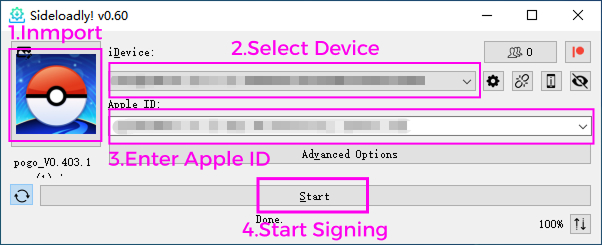
1. Import IPA:
Click the IPA icon on the left and select your .ipa file.
2. Select Device:
Choose your connected iPhone/iPad in the iDevice menu. Ensure you have tapped "Trust This Computer" on your phone.
3. Enter Apple ID:
Type your Apple account email in the Apple ID field.
4. Start Signing:
Click the Start button. If prompted for the first time, enter your Apple ID password.
5. Finish:
Wait for the progress bar to reach 100%. It is successful when the log shows "InstallComplete" and "Complete".
As shown below
II.Sideloadly FAQ
Q1: "Untrusted Developer" error after installation?
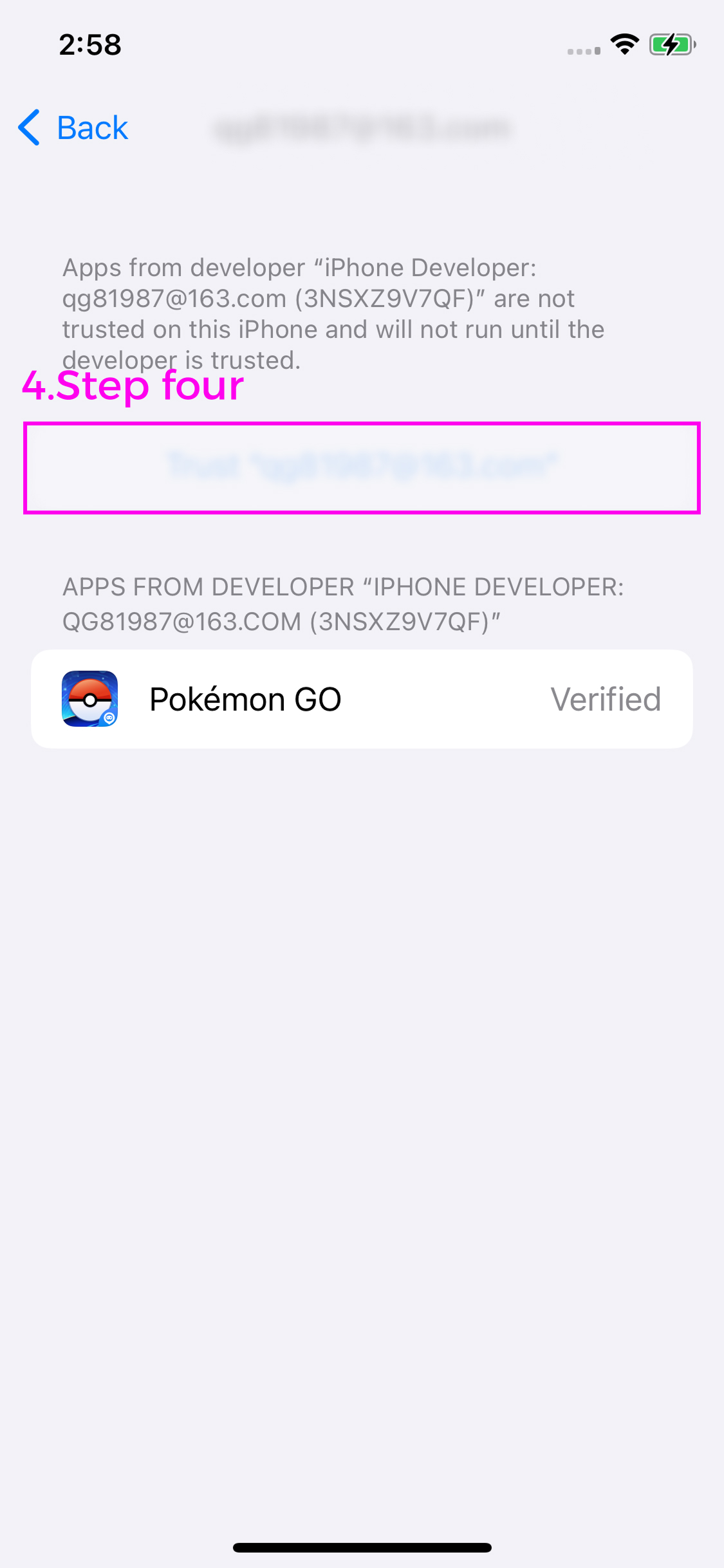
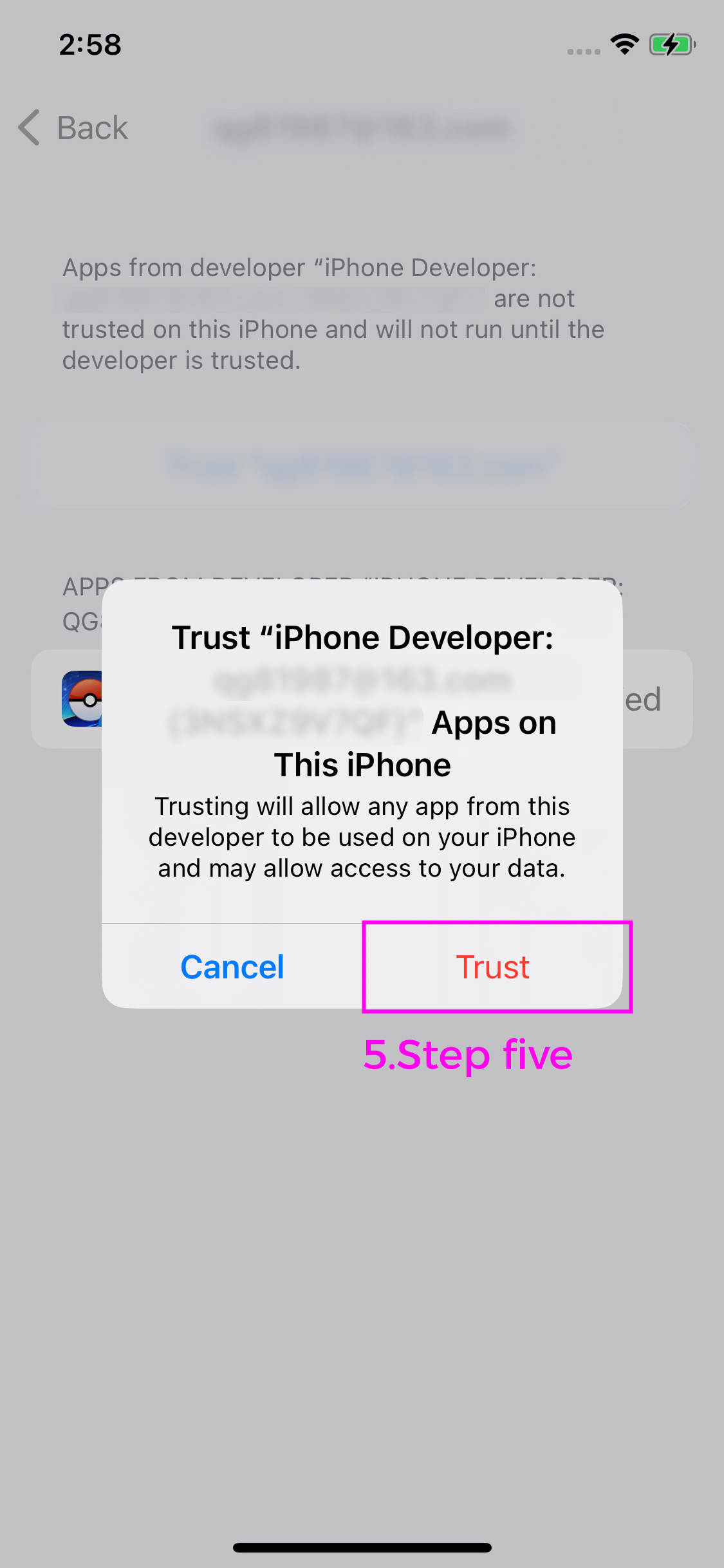
A1: Go to [Settings] -> [General] -> [VPN & Device Management]. Find your Apple ID under "Developer App" and tap "Trust".
You can view the operation video https://youtube.com/shorts/anDB1iWQTxw.
Installation Instructions
1.Once the signing is complete, download and install the game. Then, on your iPhone, go to Settings > General > VPN & Device Management.
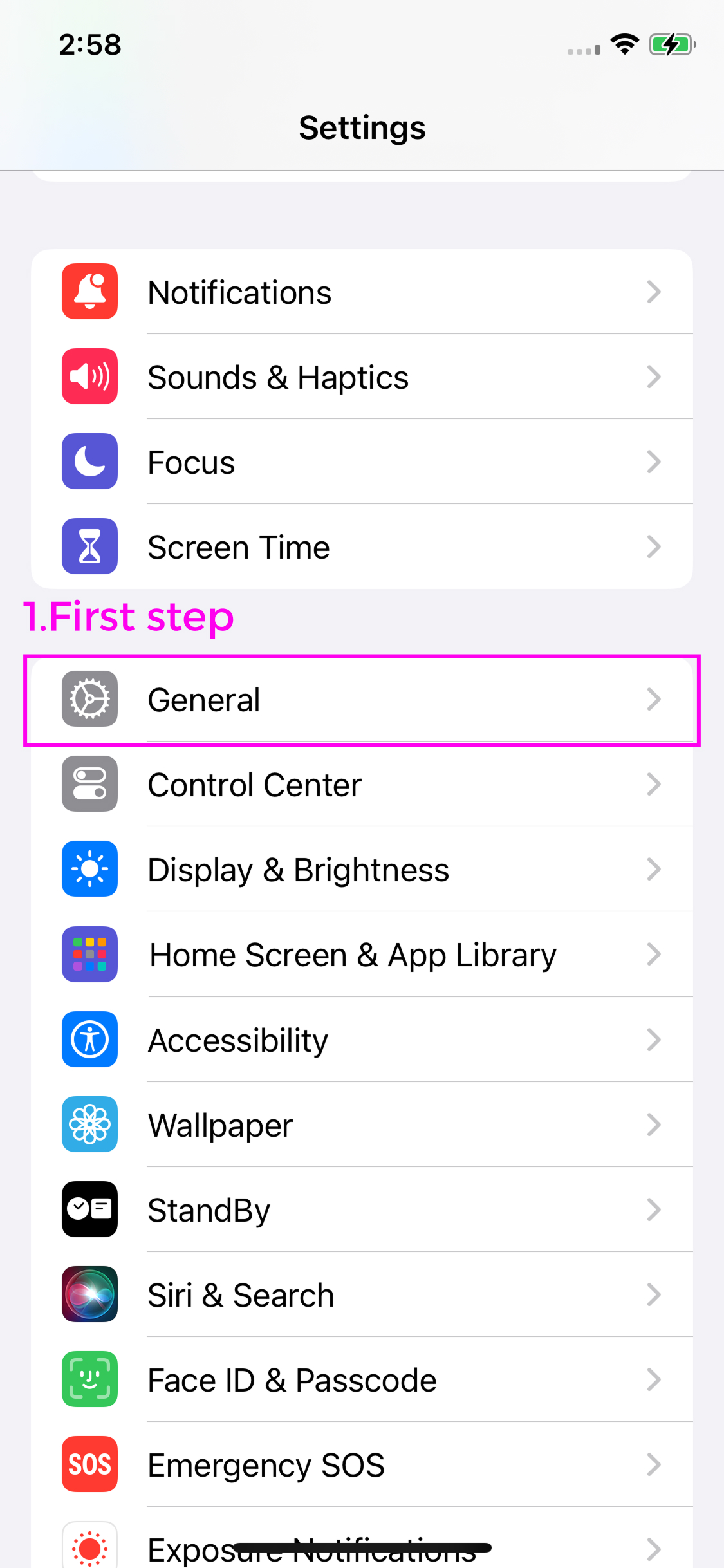
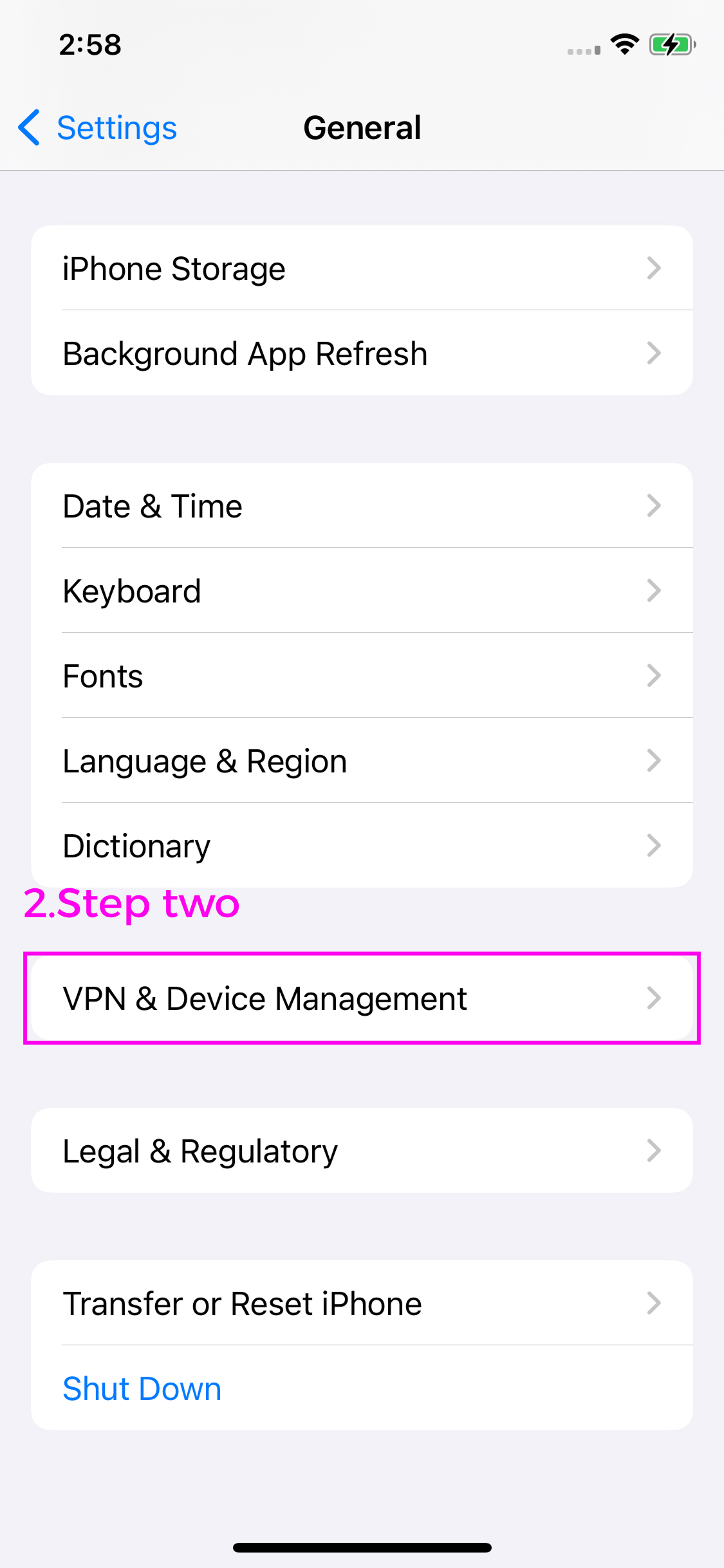
2.Locate the trusted developer profile associated with the game.
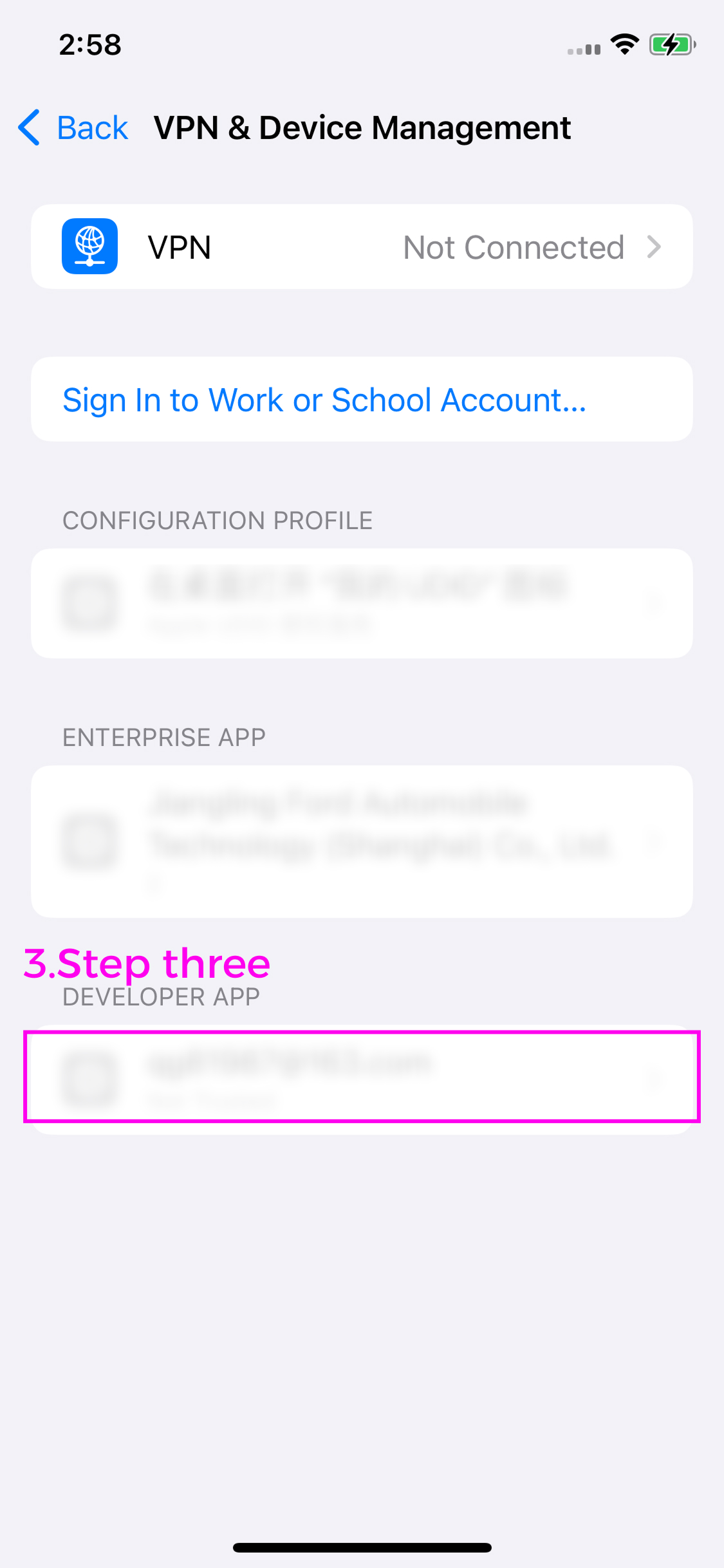
3.Tap "Trust." (Note: Devices running iOS 18 and above will automatically restart after trusting the profile).
Q2: App won't run or errors on iOS 16 or later?
A2: You must enable Developer Mode. Go to [Settings] -> [Privacy & Security] -> [Developer Mode] at the bottom, toggle it ON, and restart your device.
Q3: Why does the app stop working after 7 days?
A3: Free Apple ID signatures expire every 7 days. Simply reconnect to your PC and repeat the steps to reinstall (app data is usually preserved).
Q4: Stuck at 5% or getting a login error?
A4: Ensure you have the official version of iTunes installed. If 2FA is enabled, check for a popup on your PC to enter the 6-digit verification code.
Tip:
For better privacy, you can create a secondary Apple ID specifically for use with sideloading tools.
二、IGPS FAQ
1.Do I need to install iTunes Apple drivers on a Windows computer?
Yes, installing the iTunes Apple driver is essential for connecting your Apple device to iGPS. iTunes provides the necessary drivers for your PC to communicate with iOS devices. https://www.apple.com.cn/itunes/
2.Is the Developer Mode enabled on my phone?
Hello, to use iGPS, the Developer Mode on your phone must be enabled. Please ensure that Developer Mode is activated for the application to function properly.
3.How to enable Developer Mode on an iPhone?
"Step 1: Open the "Settings" app.
Step 2: Tap on "Privacy & Security."
Step 3: Scroll down and find and tap on "Developer Mode."
Step 4: Enable Developer Mode and restart your phone.
Step 5: After restarting, the system will prompt you to confirm enabling Developer Mode. Tap "Enable" to proceed.
4.How do I check my PC login password?
Hello, you can view your login account and password in the personal center of the iGPS app.
5.How to resolve the "Failed to enter the developer mode" issue during connection?
Hello, if you encounter the "Failed to enter the developer mod" issue, please check the following:
①Ensure that the iTunes driver is installed.
②Make sure the Developer Mode on your phone is enabled.
③Confirm that you have selected "Trust" on the pop-up and entered the lock screen password.
④Check if your data cable is supported.
⑤Ensure your iOS version is compatible, as iOS versions 17 to 17.4 are not supported.
If the issue persists after troubleshooting, please feel free to contact our customer support team.
6.How can I get help quickly?
Hello, user. If you'd like to get help quickly, feel free to join our official Facebook group, where you'll receive the latest updates and faster support services.https://www.facebook.com/groups/1810702052930537